User Guide
SoC InternApply (SIA) is a desktop app for managing internship applications, optimized for use via a Command Line Interface (CLI) while still having the benefits of a Graphical User Interface (GUI). If you can type fast, SIA can get your internship application management tasks done faster than traditional GUI apps.
With SoC InternApply, you can easily add an application, edit it later on if there are any changes needed, find the applications based on keywords and also sort them based on priority, interview date and much more! All while not having to worry about saving or storing your applications as this is done internally and automatically by SoC InternApply.
Ultimately, with SoC InternApply, you can worry less about the administrative tasks and focus more on preparing for the interviews themselves!
Table of Contents
- Table of Contents
- Glossary
- Quick start
-
Features
-
Adding an application:
add - Clearing all applications:
clear - Deleting an application:
delete -
Editing an application:
edit - Exiting the program:
exit - Finding application(s):
find - Viewing help:
help -
Listing all applications (with / without sorting):
list - Listing applications with upcoming interviews:
reminder - Saving the data
- Summary bar
-
Adding an application:
- FAQ
- Command summary
Glossary
- SIA (SoC InternApply)
Quick start
-
Ensure you have Java
11or above installed in your Computer. You can download it from this website. -
Download the latest
internapply.jarfrom here. -
Copy the file to the folder you want to use as the root folder for your SIA (e.g. you can save it in your desktop or downloads folder).
Note: There will be data (your internship applications) stored into this same folder, but it would not take up much space. -
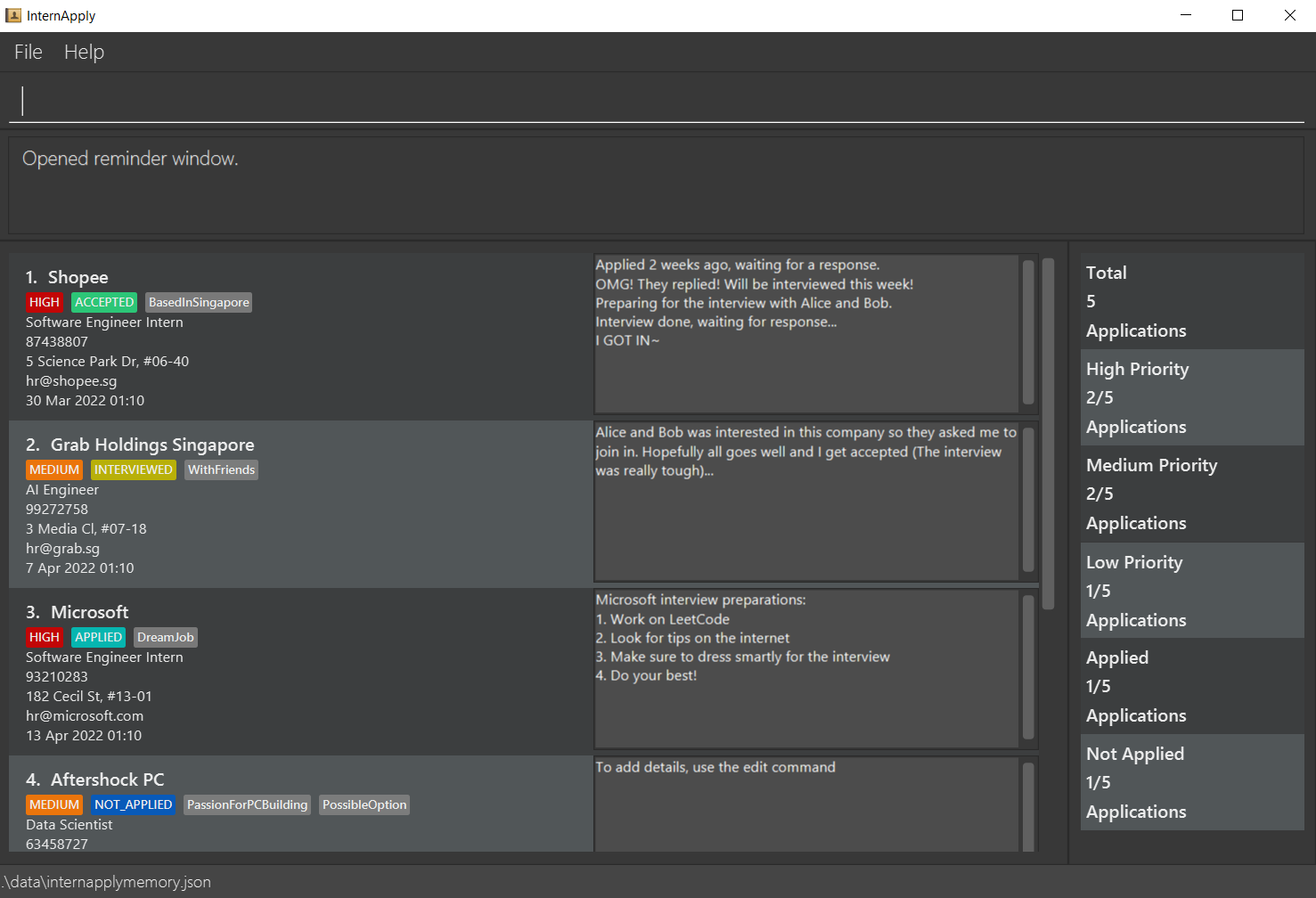
Double-click the jar file to start the app. The GUI similar to the diagram below should appear in a few seconds. Note how the app contains some sample data. Do note that for Linux OS, you may have to enable double-click to run JAR files first!
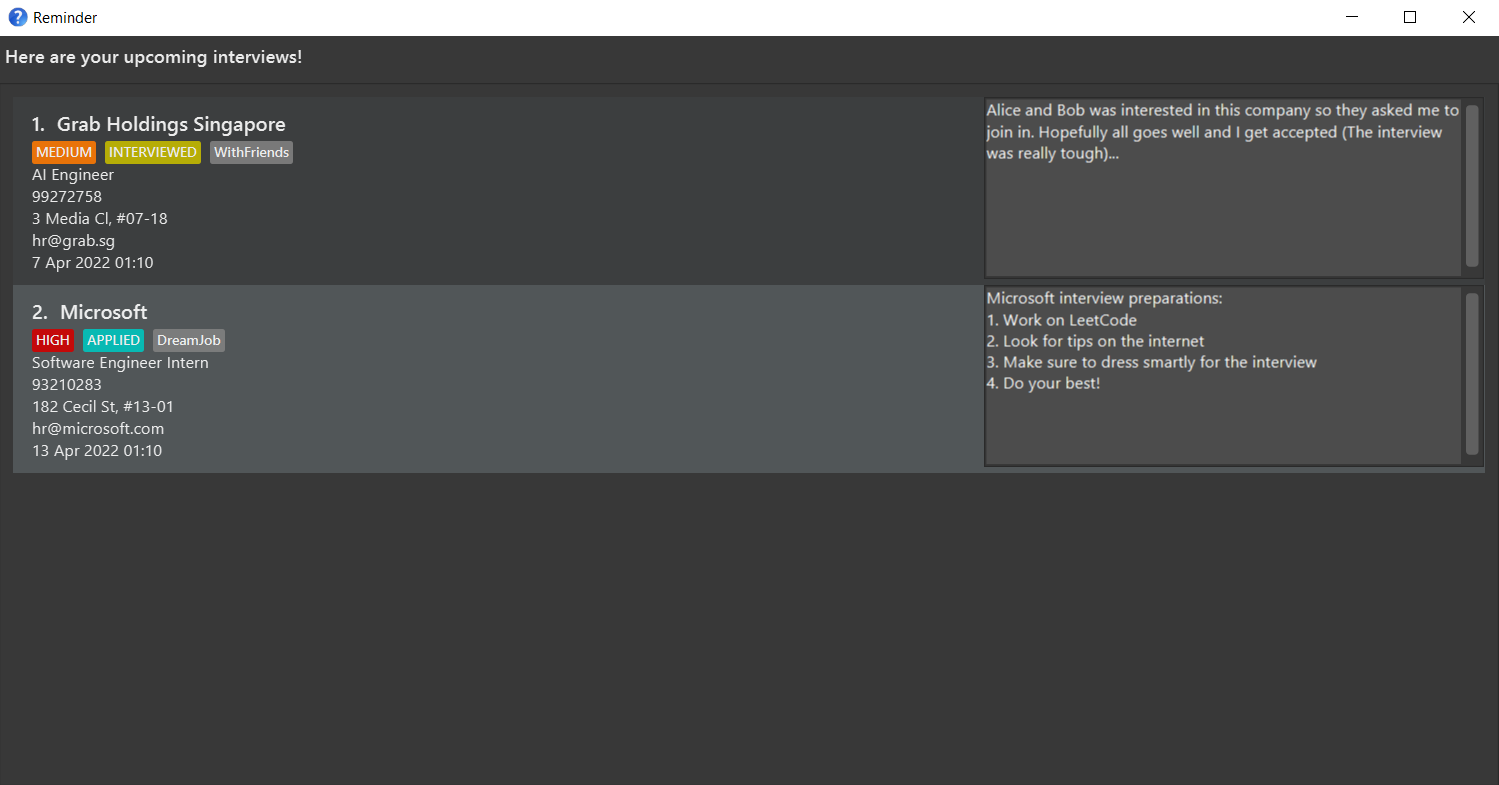
- Another reminder window should appear automatically similar to the below. Note that this window would contain any upcoming interviews you have in a weeks time.
- Type the command in the command box and press Enter to execute it. e.g. typing
helpand pressing Enter will open the help window.
Some example commands you can try:-
addn/Shopee j/Software Engineer Intern p/87438807 e/hr@shopee.sg a/5 Science Park Dr, #06-40 t/SoftwareEngineering pt/LOW ast/NOT_APPLIED: Adds an application with company namedShopeeto SIA. -
clear: Deletes all applications. -
delete3: Deletes the 3rd application shown in the current list. -
edit1 d/Thank you for using SIA!: Update the details toThank you for using SIA!for the first application on the list. -
edit1 idt/17-03-2022 16:00: Update the interview slot to17 Mar 2022 16:00for the first application on the list. -
findn/shopee: Find all applications that contain the word “Shopee” in its name. -
list: List all applications — used afterfindcommand to show all application. -
listname desc: Sort all applications base on company name in descending order. -
reminder: Lists all applications with upcoming interviews within a week from now. -
help: Shows a message explaining how to access the help page. -
exit: Exits the app.
-
- Refer to the Features below for details of each command.
 WARNING about modifying local files:
We are not liable for any data loss, by the user when modifying data stored in the JSON save file.
Edit at your own risk of losing data.
Features
Notes about the command format:
-
Words in
UPPER_CASEare the parameters to be supplied by the user.
e.g. inadd n/NAME,NAMEis a parameter which can be used asadd n/Grab SG. -
Items in square brackets are optional.
e.g.n/NAME [t/TAG]can be used asn/Grab SG t/localor asn/Grab SG. -
Items with
… after them can be used multiple times including zero times.
e.g.[t/TAG]…can be used ast/localort/local t/NUSetc. -
Parameters can be in any order.
e.g. if the command specifiesn/NAME p/PHONE_NUMBER,p/PHONE_NUMBER n/NAMEis also acceptable. -
If a parameter is expected only once in the command, but you specified it multiple times, only the last occurrence of the parameter will be taken.
e.g. if you specifyj/Software Engineer j/Data Scientist, onlyj/Data Scientistwill be taken. -
Extraneous parameters for commands that do not take in parameters (such as
help,reminder,exitandclear) will be ignored.
e.g. if the command specifieshelp 123, it will be interpreted ashelp.
Notes about duplicate applications:
-
Duplicate applications are not allowed.
-
Applications are considered duplicates if they have the same name, job title and optional tags.
-
Name, job title and optional tags are case-sensitive. e.g. The name
Shopeeis considered different fromshopee. -
Ordering of optional tags do not matter. e.g.
tag1,tag2,tag3is considered the same astag3,tag1,tag2. -
Refer to Q4 in the FAQ for adding multiple applications to the same job.
Adding an application: add
Adds an application to SoC InternApply.
Format: add n/NAME_OF_COMPANY j/JOB_TITLE p/PHONE_NUMBER a/ADDRESS e/EMAIL [t/TAG]... [pt/PRIORITY_TAG] [ast/APPLICATION_STATUS_TAG]
Parameters:
- NAME_OF_COMPANY:
- Name of company you’re applying for.
- JOB_TITLE:
- Title of the job you are applying for.
Input Constraints For [j/JOBTITLE] only alphanumeric inputs are allowed. i.e. Only the characters A-Z, a-z, 0-9. Spaces are also allowed.
E.G. j/SoftwareEngineerIntern is allowed, t/Software Engineer Intern is also allowed.
- PHONE_NUMBER:
- Phone number of the company your applying for.
- Phone number of the company your applying for.
Input Constraints: a minimum of 3 digits must be inputted but most phone numbers would be at least 8 digits long.
- ADDRESS:
- Address of the company your applying for.
- EMAIL:
- Email of the company your applying for.
Optional Parameters:
- TAG:
- Optional Tag that you can set to separate applications
- E.G. t/Application1, t/Application2
Input Constraints:
- Only alphanumeric inputs are allowed and cannot be empty. i.e. Only the characters A-Z, a-z, 0-9.
E.G.t/Based In Singaporeort/is not allowed,t/BasedInSingaporeis allowed.
- User input cannot be any of the inputs for
PRIORITY_TAGandAPPLICATION_STATUS_TAGto avoid confusion
- PRIORITY_TAG:
- Tag indicating the urgency of the application:
-
HIGH,MEDIUM,LOW
- APPLICATION_STATUS_TAG:
- Tag indicating the status of the application:
-
NOT_APPLIED,APPLIED,INTERVIEWED,REJECTED,ACCEPTED
Input Constraints: PRIORITY_TAG and APPLICATION_STATUS_TAG are not case-sensitive E.G. pt/high and pt/HIGH are identical in syntax.
Notes about duplicate applications:
An application is considered duplicate if, it’s NAME_OF_COMPANY, JOB_TITLE and TAG is identical
Example usages and expected outcomes:
add n/Shopee j/Software Engineer Intern p/87438807 e/hr@shopee.sg a/5 Science Park Dr, #06-40 t/SoftwareEngineering
Feedback message:
New application added: Shopee; Job Title: Software Engineer Intern;
Phone: 87438807; Email: hr@shopee.sg; Address: 5 Science Park Dr, #06-40;
Interview Slot: Interview date is not set.; Details: To add details, use the edit command;
Tags: SoftwareEngineering
add n/Shopee j/Software Engineer Intern p/87438807 e/hr@shopee.sg a/5 Science Park Dr, #06-40 t/SoftwareEngineering pt/HIGH ast/NOT_APPLIED
Feedback message:
This application already exists in InternApply
Clearing all applications: clear
Clears all applications from SoC InternApply.
Format: clear
Deleting an application: delete
Deletes the specified application from SoC InternApply.
Format: delete INDEX
- Deletes the application at the specified
INDEX. - The index refers to the index number shown in the displayed application list.
- The index must be a positive integer 1, 2, 3, …
- The index inputted must not exceed 2147483647 and must be a natural number.
Example usages:
-
listfollowed bydelete 2deletes the 2nd application.
Expected outcome:
The previous 2nd application is removed from the storage and a new list of applications is shown.
Editing an application: edit
Edits an existing application in SoC InternApply.
Format: edit INDEX [n/NAME] [j/JOB_TITLE] [p/PHONE_NUMBER] [e/EMAIL] [a/ADDRESS] [idt/INTERVIEW_DATE_TIME] [d/DETAILS] [t/TAG]... [pt/PRIORITY_TAG] [ast/APPLICATION_STATUS_TAG]
CAUTION: The edit command will overwrite your existing application data.
- Edits the application at the specified
INDEX. The index refers to the index number shown in the displayed application list. The index must be a positive integer 1, 2, 3, … - At least one of the optional fields must be provided.
- The index inputted must not exceed 2147483647 and must be a natural number.
- Existing values will be updated to the input values.
- You cannot edit an application to become a duplicate of another application. Any attempts will be prevented. Please refer to our Notes about duplicate applications
Parameters:
- NAME, JOB_TITLE, PHONE_NUMBER, EMAIL, ADDRESS
- For the above fields, all restraints from the add command is applicable.
- E.G.
edit 1 e/SoCStudent@example.com n/NUS ResearchEdits the email and name of the 1st application to beSoCStudent@example.comandNUS Researchrespectively.
Input Constraints:
- For
[j/JOBTITLE]only alphanumeric inputs are allowed. i.e. Only the characters A-Z, a-z, 0-9. Spaces are also allowed.
E.G.j/SoftwareEngineerInternis allowed,t/Software Engineer Internis also allowed. - For
[p/PHONE_NUMBER]a minimum of 3 digits must be inputted but most phone numbers would be at least 8 digits long.
- INTERVIEW_DATE_TIME
- You can add an interview slot that includes both date and time by using
idt/INTERVIEW_DATE_TIME - The interview date time,
INTERVIEW_DATE_TIME, must be in the follow formatdd-MM-yyyy HH:mm. - You can remove
INTERVIEW_DATE_TIMEby usingidt/without specifying anything after it.
- You can add an interview slot that includes both date and time by using
- DETAILS
- You can add details to the application by using
d/DETAILS - You can enter new lines in the details input by using
\n - You can remove
DETAILSby typingd/without any strings following it, which will revert the field back to the default ofTo add details, use the edit command - To edit the details of an application, you can follow this format (adding \n to type in a new line):
edit 1 d/Example details \nThis is a newline of the details
e.g.edit 1 d/This company requires a preliminary coding round.\n I should practice more on HackerRankwill result in this details being added:This company requires a preliminary coding round. I should practice more on HackerRank
- You can add details to the application by using
- TAGS, PRIORITY_TAG, APPLICATION_STATUS_TAG
- You can change the priority or application status of an application by using
pt/Highorast/Applied - The tags are not case-sensitive
- Entering
pt/highwhen the application priority tag ishighis permitted but does not change anything
- You can change the priority or application status of an application by using
Example usages and expected outcomes:
-
edit 2 j/Intern idt/Edits the job title of the 2nd application to beInternand clears the existing interview date time. -
edit 1 t/Singapore ast/APPLIEDEdits the tags and application status tag of the 1st application to Singapore and APPLIED respectively. Since the priority tag is not specified, the 1st application will keep its current priority tag if it had any.
Advanced Function
Removing Tags from existing application.
CAUTION: While it is possible to use these special Tags while editing other fields of an existing application in SoC InternApply, we highly recommend not doing so unless you know what you are doing. However, if you wish to do so please refer to the description below beforehand.
Format: edit INDEX [t/removetags] [t/removepriority] [t/removestatus]
- Removes the Tags from an existing application.
-
[t/removetags]will remove all Optional Tags from an application (i.e. Tags with the prefixt/). -
[t/removepriority]will remove the Priority Tags from an application (i.e. Tags with the prefixpt/). -
[t/removestatus]will remove the Application Status Tags from an application (i.e. Tags with the prefixast/). - These special Tags are not case-sensitive (i.e. typing
t/ReMOveTagSwould also work). - These special Tags cannot be used as a valid Optional Tag for your applications.
- These special Tags can be used in any order, and you can either use 1 of them, a pair of them, or all 3 of them.
- These special Tags takes precedence over all other Tag inputs. Refer to the Example usage below for reference.
- You can still use these special Tags even if the respective Tags do not exist for the specified application. Nothing will happen in this case.
- If removing any of the Tags from an application causes it to become a duplicate application the command will be invalid. Please refer to our Notes about duplicate applications
Example usages and expected outcomes
-
edit 1 t/removetags t/removepriorityRemoves all the Optional Tags and the Priority Tag from the 1st application. -
edit 1 p/65258719 t/removestatusRemoves the Application Status Tag from the 1st application. Edits the phone number of the 1st application to be65258719 -
edit 1 pt/HIGH t/removeprioritySpecial Tags takes precedence over all other Tag inputs. Removes the Priority Tag from the 1st application. Ignores thept/HIGHinput. -
edit 1 t/removestatus t/Singapore t/ExEmployeeSpecial Tags takes precedence over all other Tag inputs. Removes the Application Status Tag from the 1st application. Ignores thet/Singapore t/ExEmployeeinputs. -
edit 1 t/removestatusfollowed byedit 1 t/removestatusFirst removes the Application Status Tag from the 1st application. Then does nothing since there does not exist an Application Status Tag for the 1st application.
Exiting the program: exit
Exits the program.
Format: exit
Finding application(s): find
Finds existing applications in SoC InternApply.
Format: find [n/NAME] or find [j/JOB_TITLE] or find [t/TAG]... or find [pt/PRIORITY_TAG] or find [ast/APPLICATION_STATUS_TAG]
- Finds the applications with the fields containing keywords given in the input (partial keywords accepted as well).
- Keywords are case-insensitive.
- Parameters are only expected once (except tags). e.g.
find n/shopee n/grabis equivalent tofind n/grab, the last occurrence of the parameter will be taken. - However, for
n/andj, more than 1 word can be accepted per field i.e.find n/aftershock pcwill display any application with the nameaftershockorpc. - If more than 1 different fields are given, i.e.
find n/shopee j/ML, only the first field (in the sequence of [n/NAME], [j/JOB_TITLE], [t/TAG]…, [pt/PRIORITY_TAG], [ast/APPLICATION_STATUS_TAG]) will be processed, i.e.find n/shopee j/MLis the same asfind n/shopee,find j/ML n/shopeeis also the same asfind n/shopee
Example usages and expected outcomes:
-
find n/shopeefinds and displays all applications with “Shopee” in its name. -
find j/MLfinds and displays all applications with “ML” in its job title. -
find pt/HIGHfinds and displays all applications with “HIGH” in its priority tag. -
find ast/appliedfinds and displays all applications with “applied” in its application status. (note that it is case-insensitive) -
find t/overseasfinds and displays all applications with “overseas” in its tags. -
find t/overseas t/USAfinds and displays all applications with “overseas” or “USA” in its tags.
Viewing help: help
This command displays a message explaining how to access the help page.
Format: help
Example usages:
help
Expected outcome:
A popup window showing a link to the help page, as shown below.

Listing all applications (with / without sorting): list
List all applications (with sorting)
Sorts the list of all applications in SoC InternApply based on the provided parameters.
Format: list [sorting paramter] [order by]
Sorting parameters:
-
name: Sort by name of the company in alphabetical order starting with A in ascending order. -
interview: Sort by interview date of applications starting with the latest earliest date. -
priority: Sort by priority in the following ascending order - (NO_TAG), LOW, MEDIUM, HIGH. -
status: Sort by status in the following ascending order - ACCEPTED, REJECTED, INTERVIEWED, APPLIED and NOT_APPLIED, (NO_TAG). - If there is more than one application have similar fields, the company
nameof the application will be used as tiebreak to sort alphabetically (i.e. Application 1 with company nameAAAandHIGHpriority and Application 2 with company nameBBBandHIGHpriority are sorted by priority in ascending order — Application 1 will be ranked higher than Application 2).
Order by:
-
asc: Order by ascending. -
desc: Order by descending (reverse order of ascending).
Examples:
list interview desc-
list name desc, running this will output:
Sorted applications by name order by desc.
💡 list command with parameters only considers the first two parameters if and only if the first two parameters are valid.
-
list status desc— Valid, sorted bystatusin descending order -
list abc status asc— Invalid -
list status asc name desc— Valid, sorted bystatusin ascending order
💡 Upper case and lower case name are consider as same ranking.
i.e. Application 1 with company name aaa will be ranked above Application 2 with company name BBB when sorted by name in ascending order.
⚠️ Applications are originally sorted in a chronological order base on create date and time.
Do take note that after using the list feature to sort, you will not be able to sort the applications in chronological order.
List all applications (without sorting)
The list command also works without parameters. It will show the list in the last sorted order used by the user. This is used after using the find feature to list out all applications.
Example:
list
Listed all application(s).
💡 list command without parameters only works if and only if you do not provide parameters.
❗ Sorting will not apply to newly added or newly edited applications.
Please re-run the list command with the respective parameters to sort as you like.
Listing applications with upcoming interviews: reminder
Shows a list of applications with upcoming interviews, falling within a week from now, in SoC InternApply.
Format: reminder
Example usages:
reminder
Expected outcome:
A popup window showing a list of applications with upcoming interviews within a week from now, as shown below.
Saving the data
SoC InternApply data are saved in the hard disk automatically after any command that changes the data. There is no need to save manually.
Summary bar
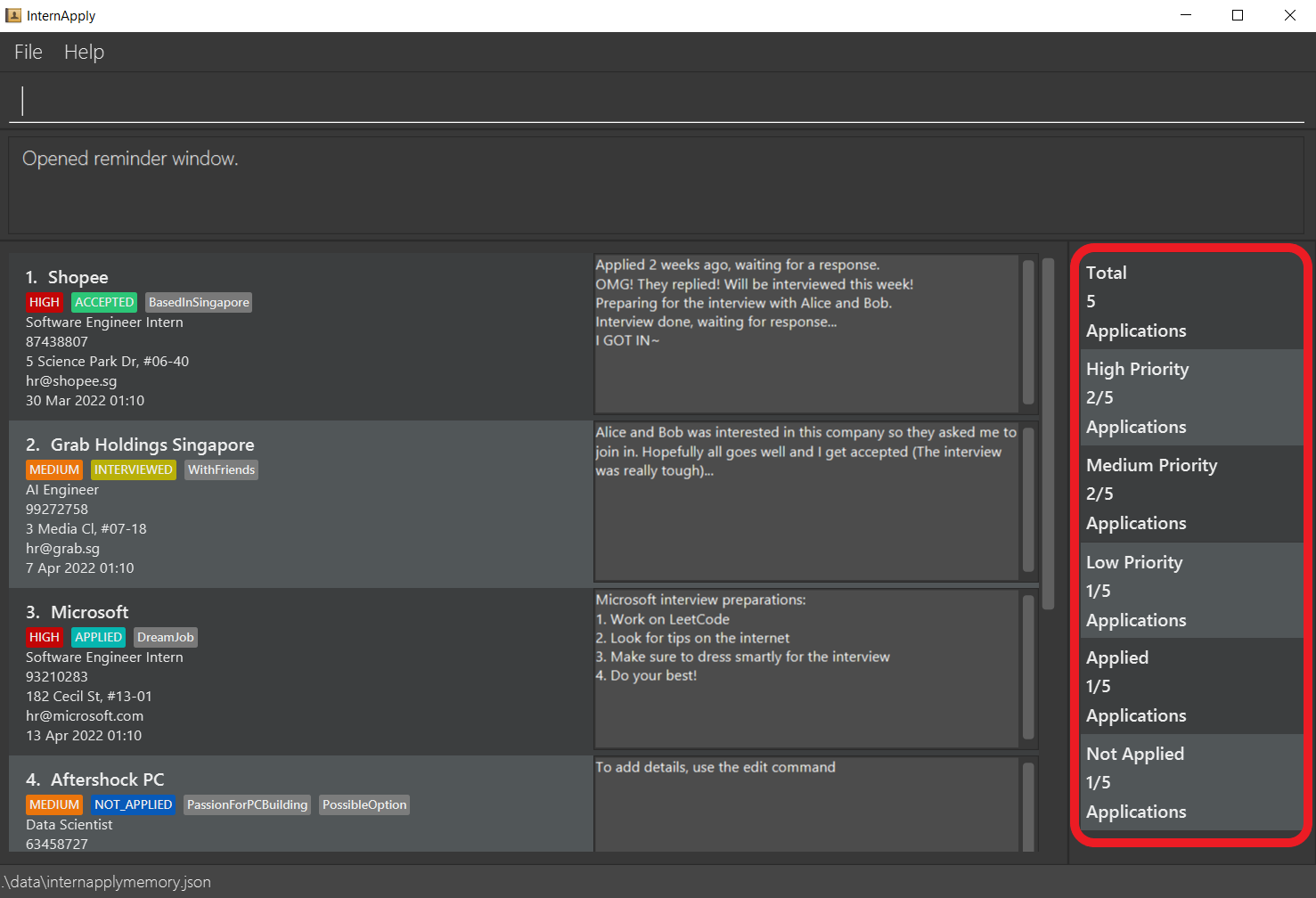
The summary bar is automatically updated on successful execution of any command.
Example summary bar (highlighted in red):
FAQ
Q1: How do I know where my internship applications data is stored?
A: Please locate where SoC InternApply is being stored on your computer. You will see a folder named data found in the root folder of the application (the folder containing SoC InternApply) Inside the data folder, you can find a data file named internapplymemory.json, which stores all the applications.
Q2: How do I transfer my data to another computer?
A: Refer to the 1st QnA to locate the data file. Install the app in the other computer. Copy the contents of the data file of SoC InternApply from your previous computer and paste it in the empty data file of SoC InternApply of the new computer.
Q3: When I run SIA for the first time, I do not see any of the sample application. How can I get the sample applications to appear in SIA?
A: Refer to the 1st QnA to locate the data folder. Delete any existing files in the data folder and run SoC InternApply again.
Q4: I have an existing application to a company that I applied to where I got rejected and I am trying to reapply to the same company with the exact same details. Since SIA cannot have duplicate applications, what should I do?
A:
Option 1: Using edit, you can simply reuse the existing application with updated information.
Option 2: If you are looking to keep the existing application and it’s information untouched, then we suggest including an additional “t/NthAttempt” to differentiate your new application and the existing application. This will not violate our duplication clause while also allowing you to keep information on your existing application.
Q5: How many applications can SIA track?
A: 2147483647 applications can be tracked.
Q6: When I use find followed by edit sometimes the application that I edited disappears form the main window. Am I doing something wrong?
A: This can happen when you find applications with a specific field like NAME and then edit the NAME of an application that you found to something that no longer meets the criteria of the find command.
For example, if you call find n/Grab followed by edit 1 n/Shopee the 1st application will disappear since it is no longer an application with a NAME containing Grab
Q7: Why is the idt/ not recognised by add command?
A: idt/ is intentionally excluded from the add command. More often than not, students who apply for an internship do not receive an interview slot from the get go. Taking this into consideration, we decided that users need not include a valid InterviewSlot input just as a placeholder value to add new applications.
Q8: I just used the list command to sort my applications. Is it possible to revert sorting order?
A: Unfortunately due to the current limitations of our application, you will not be able to revert the sorting order after using list. This includes the order in which applications were added into SIA so please do your sorting with caution.
Command summary
| Action | Format, Examples |
|---|---|
| Add |
add n/NAME_OF_COMPANY p/PHONE_NUMBER a/ADDRESS j/JOB_TITLE e/EMAIL [t/TAG]... [pt/PRIORITY_TAG] [ast/APPLICATION_STATUS_TAG] e.g., add n/Singtel j/UIUX Intern p/62527525 e/singtel@sg.com a/Singtel Group Strategic Communications and Brand, 31 Exeter Road, Comcentre #19-00 ast/APPLIED
|
| Clear | clear |
| Delete |
delete INDEXe.g., delete 3
|
| Edit |
edit INDEX [n/NAME] [j/JOB_TITLE] [p/PHONE_NUMBER] [e/EMAIL] [a/ADDRESS] [idt/INTERVIEW_DATE_TIME] [t/TAG]... [pt/PRIORITY_TAG] [ast/APPLICATION_STATUS_TAG] e.g., edit 1 n/Grab SG p/65358292 idt/17-03-2022 13:30edit INDEX [t/removetags] [t/removepriority] [t/removestatus]e.g., edit 1 t/removetags t/removestatus
|
| Exit | exit |
| Find |
find [n/NAME] or find [j/JOB_TITLE] or find [t/TAG]... or find [pt/PRIORITY_TAG] or find [ast/APPLICATION_STATUS_TAG]e.g., find n/shopee
|
| Help | help |
| List | list [sorting paramter] [order by] |
| Reminder | reminder |